-
Google Chrome Integration
 Please install from the Chrome Web Store. Get BID Chrome Extension
 -
Firefox Integration
 Please install from Firefox Browser Add-ons. Get BID Firefox Extension
-
Microsoft Edge Integration
 MS Edge Chromium is compatible with Chrome Web Store extensions. Please install from the Chrome web store. Get BID MS Edge Extension
 -
Opera Integration
 First install the "Install Chrome Extensions" Opera extension. Then install the BID extension from the Chrome Web Store. Get BID Opera Extension
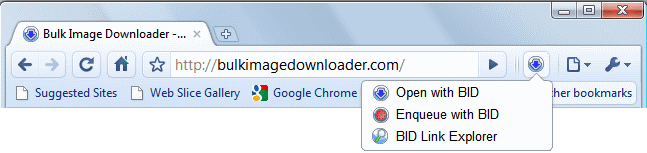
The BID browser extension adds a button to your browser's toolbar which allows you to open the current page with BID, add the current page to the BID Queue Manager job list or open the current page with the BID Link Explorer.
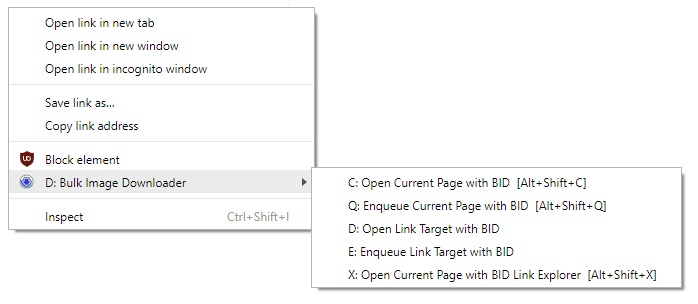
It also adds BID menu items to the browser's right click context menu. The "Link Target" context menu items are only applicable when right clicking on links.
Keyboard Shortcuts
| Alt+Shift+C or Alt+Shift+D | : | Open current page with BID |
| Alt+Shift+Q | : | Enqueue current page with BID |
| Alt+Shift+X | : | Open current page with BID Link Explorer |
| Right click on page, then press D, C | : | Open current page with BID |
| Right click on page, then press D, Q | : | Enqueue current page with BID |
| Right click on page, then press D, X | : | Open current page with BID Link Explorer |
| Right click on link, then press D, D | : | Open link target with BID |
| Right click on link, then press D, E | : | Enqueue link target with BID |